Licence Key Updates#
USB HASP keys contain software licence information.
To upgrade to a new version of ZORBA, change the number of seats on a Network licence or add additional software licences the licence information on the HSAP key needs to be edited using an update file.
Updating a HASP key license is a two-stage process.
-
Step One
Extract a license file, called a Client 2 Vendor or c2v file, from the HASP key and send the file to a Distributor for updating.
-
Step Two
The Distributor will send back an update file, called a Vendor 2 Client or v2c file, which is loaded back onto the HASP key to apply changes to the licence information.
Recommended operating system
It is recommended to carry out the update key process on a Windows 10 or Windows 11 PC.
Extracting a c2v file#
A c2v file can be created using the Sentinel Admin Control Centre as follows:
-
Plug the ZORBA HASP key into the PC
-
Open the Sentinel Admin Control Center
-
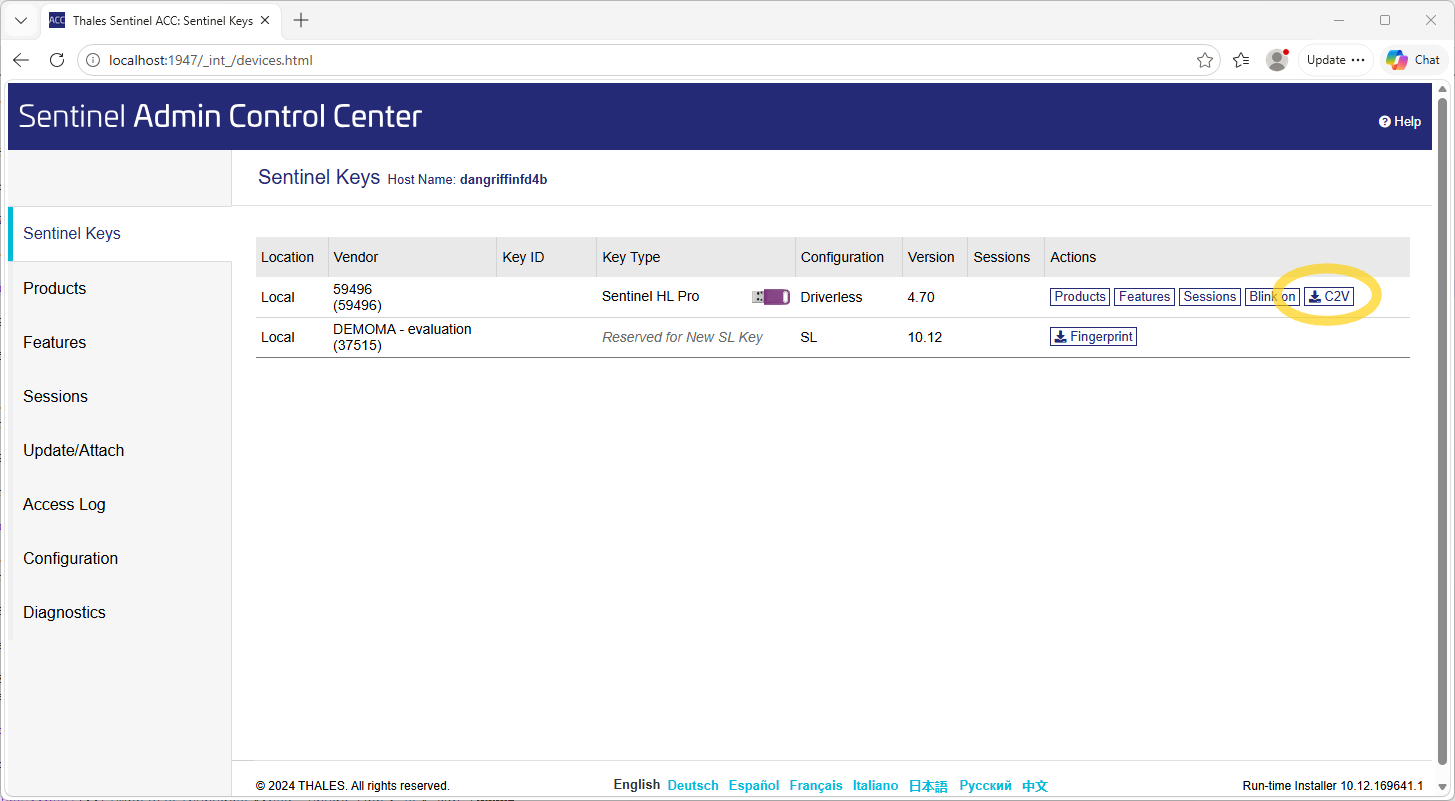
On the Sentinel Keys tab, the connected HASP key should appear on the list
-
Navigate to the Actions column on the table for the connected key and click on the c2v button. This will create the .c2v file and prompt for the file to be downloaded.
-
Download the .c2v file
-
email the .c2v file to your local distributor
There is no c2v option in the list of Actions
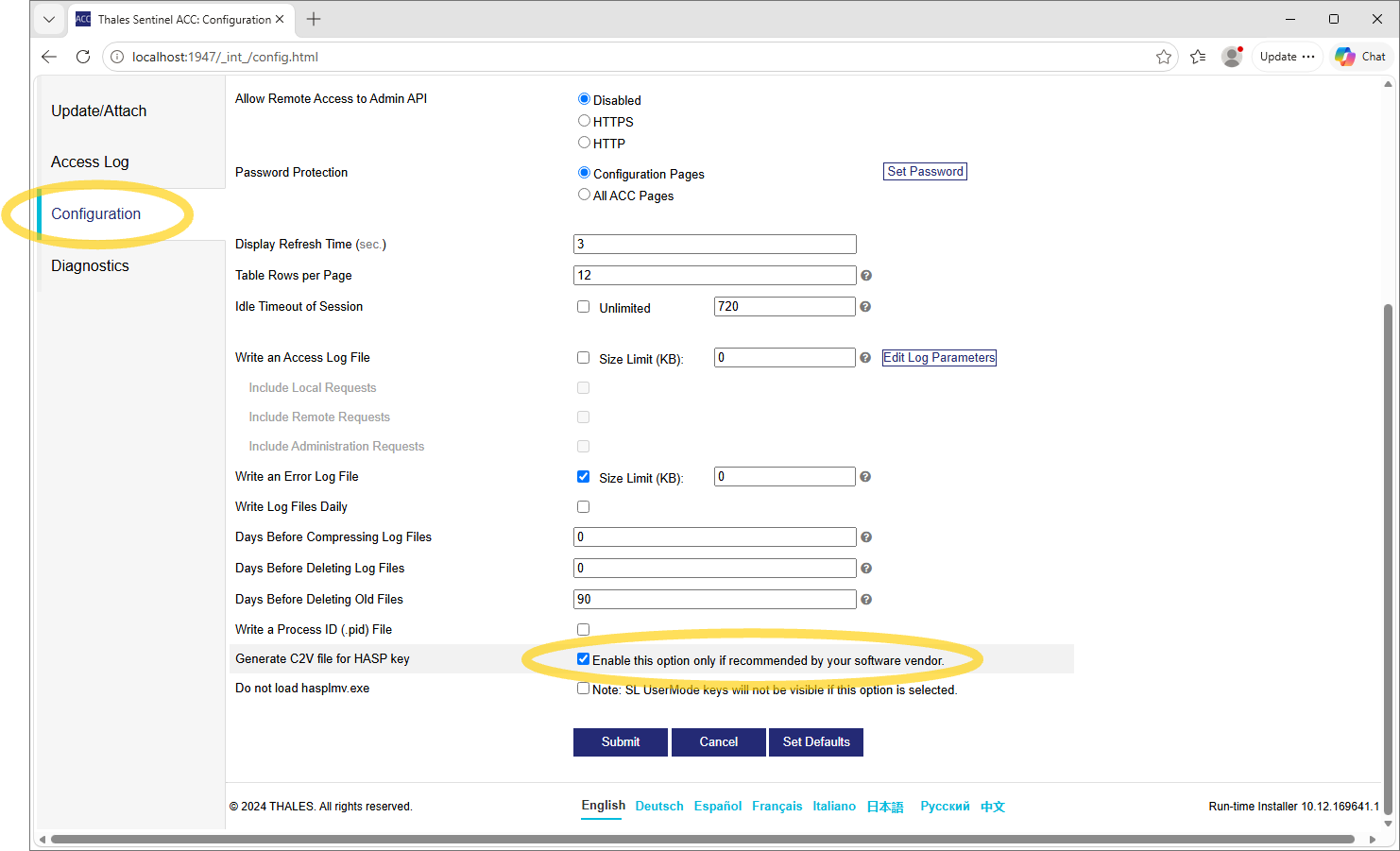
By default, the c2v button in the Actions column may be hidden.
To show the c2v button, navigate to the Configuration tab using the menu on the left hand side. On the Basic Settings page, select the check box for Generate C2V file for HASP key.
The C2V button should now appear on the table on the Sentinel Keys tab.
Loading a v2c file#
After a c2v file has been emailed to the distributor, they will email back a v2c file.
A v2c file can be loaded onto a HASP key using the Sentinel Admin Control Centre as follows:
-
Save the v2c file from the distributor locally on your PC
-
Plug the ZORBA HASP key into the PC
-
Open the Sentinel Admin Control Center
-
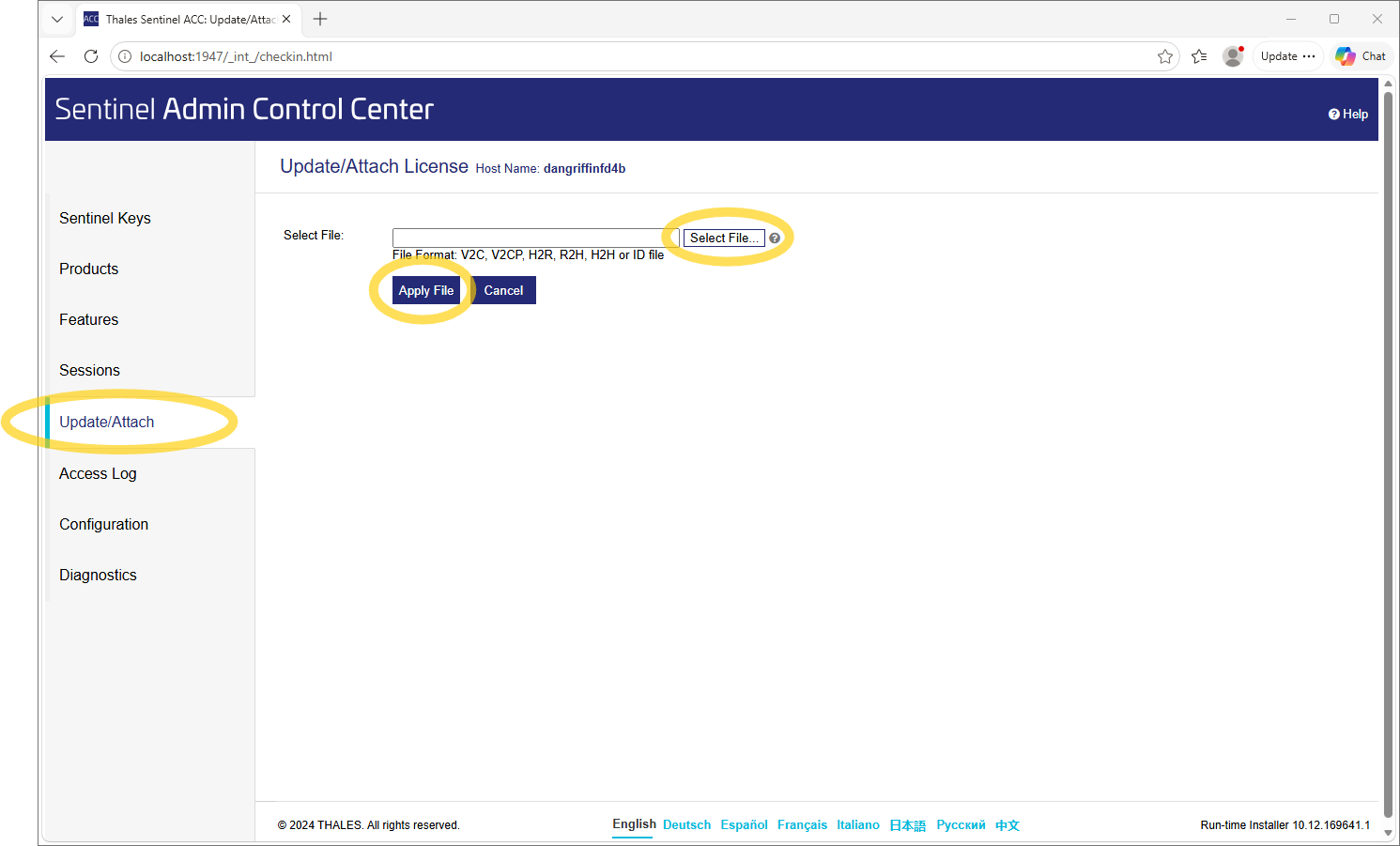
Select Update/Attach form the left hand menu
-
Click Select File... and navigate to the v2c file provided by your distributor
-
Select Apply File
After updating the HASP key...
If the v2c file has been loaded onto the HASP key successfully, a confirmation message will display on the Update/Attach page.